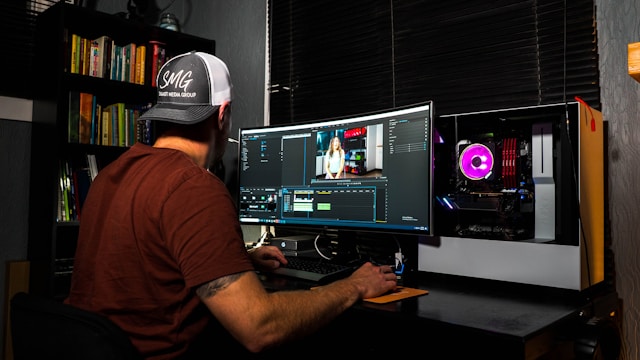
Creating tutorial videos no longer requires a professional studio or intimidating software. With the right screen recording tool, you can quickly capture your process, explain complex ideas, and share knowledge effortlessly. This guide will walk you through everything you need to know to choose and use software that turns tutorial creation from a chore into a simple, streamlined process. Whether you’re an educator, a trainer, a content creator, or a professional sharing expertise, the key is finding a tool that feels intuitive and gets out of your way, letting your teaching shine.
Key Takeaways
- Define Your Needs First: Match the software to your content type, audience, and skill level for the best fit.
- Core Features Are Crucial: Prioritize intuitive controls, high-quality output, dual audio capture, webcam support, and basic editing.
- Preparation is Key: A clean desktop, closed apps, a tested microphone, and a simple script prevent common recording pitfalls.
- Audio Quality is Non-Negotiable: Clear voice audio is more important than ultra-high-definition video for viewer retention.
- Edit for Engagement: Use trimming and cutting to create concise, focused videos that respect your viewer’s time.
1. Understanding Your Recording Needs
Before diving into specific software, it’s crucial to assess what you actually need to record. Not all tutorials are created equal, and your tool should match your specific goals.
Consider Your Content Type:
- Software Demos: Require crisp, high-resolution capture of your screen, possibly with system audio.
- Presentation Recordings: Often need webcam overlay (picture-in-picture) to add a personal touch alongside slides.
- Detailed Process Tutorials: May benefit from annotation tools you can use during or after recording to highlight cursor movement or key clicks.
- Quick Explanatory Clips: Might prioritize ultra-fast launching and one-click sharing over advanced editing.
Audience & Platform: The platform where you’ll host your video (YouTube, LMS like Moodle, internal wiki, etc.) influences ideal resolution, aspect ratio, and file format. A video for a mobile audience has different requirements than one for a corporate training portal.
Your Skill Level: Be honest about your technical comfort. A beginner needs clear, simple controls, while a power user might seek advanced editing, multi-track timelines, and custom export settings.
2. Must-Have Features for Effortless Tutorial Creation
The best tools share a set of core functionalities that remove friction from the creation process.
- Intuitive Interface: The software should feel logical from the moment you open it. Complicated menus are the enemy of quick creation.
- Flexible Recording Areas: Look for the ability to record the full screen, a specific application window, or a custom region you define.
- High-Quality Output: Ensure it can record at least 1080p (Full HD) resolution. 4K support is a bonus for future-proofing.
- System Audio & Microphone Capture: The ability to simultaneously record sound from your computer (like app notifications or background music) and your voice via a microphone is non-negotiable for most tutorials.
- Webcam Overlay: Adding a face-to-face connection through a picture-in-picture webcam feed makes tutorials more engaging and trustworthy.
- Basic Editing Suite: Trimming clips, cutting out mistakes, and stitching segments together without leaving the app saves immense time.
- Annotation & Highlighting: Tools to add arrows, text, highlights, or spotlight effects during the recording or in post-production direct viewer attention.
- Efficient Sharing: Direct export to common video formats (MP4 is standard) and one-click uploads to platforms like YouTube or Google Drive streamline your workflow.
3. Top Software Comparison
Here is a breakdown of popular screen recording tools, highlighting their strengths and ideal users.
| Software | Best For | Key Strengths | Consideration |
|---|---|---|---|
| Loom | Rapid communication, asynchronous work. | Dead-simple, cloud-based, instant sharing via link, strong team features. | Limited advanced editing; primarily cloud-stored. |
| Camtasia | Professional, polished tutorial creators. | All-in-one studio: robust recording, powerful editing, animations, effects. | Higher cost; steeper learning curve for full features. |
| OBS Studio | Free, open-source, and highly customizable. | Completely free, professional-grade, supports streaming, vast plugin library. | Configuration can be complex for beginners. |
| Snagit | Image and short video captures. | Excellent for stepped screenshots & short GIFs; very user-friendly. | Not built for long-form video editing; captures <15 min. |
| QuickTime Player | Mac users needing basic recording. | Free and pre-installed on Macs, very simple for audio+screen capture. | Extremely limited features; no editing or annotations. |
| ScreenPal | Balanced feature set & ease of use. | Strong recording toolkit, built-in editor, simple interface, good value. | Webcam recording can be less configurable than others. |
4. Step-by-Step Guide to Recording Your First Tutorial
Follow this checklist for a smooth recording session every time.
Pre-Production Preparation:
✓ Script Your Key Points: Don’t wing it. Write a brief outline or script to stay concise.
✓ Close Unnecessary Apps: Mute notifications and close tabs/programs to avoid distractions and preserve system resources.
✓ Check Your Gear: Test your microphone for clear audio and your webcam for good lighting.
✓ Prepare Your Desktop: Clean up your desktop background and have any necessary files/webpages ready and organized.
The Recording Process:
- Launch Your Chosen Software: Open your screen recorder and familiarize yourself with the controls.
- Select Your Capture Area: Choose to record a specific window, your full screen, or a custom region.
- Configure Audio Sources: Ensure your microphone is selected and at an appropriate input level. Enable system audio if needed.
- Enable Webcam (Optional): Position your webcam feed on the screen where it doesn’t obscure important content.
- Hit Record & Present: Start recording, take a brief pause, then begin. Speak clearly and at a moderate pace.
- Use Annotations Live (if comfortable): Some tools let you draw or highlight live. Practice this beforehand.
- Stop Recording: Use the keyboard shortcut or on-screen button to end the capture.
Post-Production & Sharing:
✓ Trim the Edges: Use the built-in editor to cut off any dead air at the start and end.
✓ Remove Mistakes: Snip out any major flubs or long pauses to keep the video engaging.
✓ Add Titles/End Screens (if needed): A simple title screen adds professionalism.
✓ Export: Choose a standard format like MP4 at 1080p resolution for broad compatibility.
✓ Upload & Share: Distribute to your chosen platform, whether it’s a video host, LMS, or file-sharing service.
5. Pro Tips for Polished, Professional Results
Invest in a Decent Microphone: Viewers will tolerate medium video quality but not poor audio. A USB condenser microphone dramatically improves perceived value.
Control Your Cursor: Move your cursor deliberately. Use a tool that can highlight or enlarge cursor clicks to guide the viewer’s eye.
Keep it Concise: Edit ruthlessly. Aim for the shortest possible video that delivers the lesson. If a topic is long, break it into a series.
Use a Consistent Intro/Outro: A 3-second intro (like a title card) and a standard outro (with a call to action) create a branded, professional series.
Practice Once: Do a quick 30-second test recording to check audio levels, video clarity, and your speaking pace before the final take.
6. Optimizing and Sharing Your Recordings
Creating the video is only half the battle. Ensuring it’s usable and findable is key.
- Naming Conventions: Use a clear, descriptive filename (e.g., “How-to-Export-PDF-in-Photoshop-2024.mp4”).
- Compression Balance: Balance file size and quality. For web sharing, H.264 codec in an MP4 container is ideal.
- Accessibility: Add captions or provide a transcript. This aids comprehension, helps non-native speakers, and is essential for accessibility.
- Thumbnails: Create a custom, engaging thumbnail image with text overlay. This is the first thing potential viewers see.
- Descriptive Metadata: When uploading, use relevant titles, descriptions, and tags to help your audience find your tutorial.
7. Frequently Asked Questions (FAQ)
Q: Do I need a powerful computer for screen recording?
A: For basic 1080p recording, most modern computers are sufficient. Recording at 4K, using a webcam simultaneously, or doing complex editing will require a more powerful CPU and adequate RAM.
Q: What is the best free screen recorder for beginners?
A: For Mac users, QuickTime Player is the simplest start. For Windows, the Xbox Game Bar (Win+G) is built-in and capable. For more features across platforms, OBS Studio is powerful but has a steeper initial setup.
Q: How long can I record my screen?
A: Most dedicated software has no hard limit, constrained only by your storage space. Built-in tools like Snagit may have limits (e.g., 15 minutes).
Q: Can I record a tutorial on a tablet or smartphone?
A: Yes. Both iOS and Android have built-in screen recording functions in their control centers. For more advanced features, apps like AZ Screen Recorder (Android) are excellent.
Q: My recorded video file is huge. How can I reduce its size?
A: Use your software’s export settings to lower the resolution (if appropriate), decrease the bitrate, or use a more efficient codec like H.265. Online video compressors can also help after export.
Q: Is it legal to record any software for a tutorial?
A: Generally, for educational or review purposes, it falls under “fair use.” However, avoid recording copyrighted content (like movies, premium courses) you don’t own, and always check a software’s EULA if creating commercial tutorials.
8. Conclusion
The journey to creating compelling tutorial videos is fundamentally about clarity and efficiency. By understanding your specific needs, leveraging the core features that matter, and following a structured process, you can produce high-quality educational content consistently. Remember, the best tool is the one that feels intuitive and allows you to focus on your teaching, not on the technology. Start with a simple setup, apply the pro tips for immediate quality gains, and gradually explore more advanced features as your confidence grows. The world needs your knowledge, and with today’s fast screen recording tools for effortless tutorial creation, sharing it has never been more straightforward.




Leave a Reply